ESP
Overwatch 2 ESP Settings
This guide explains how ESP visual settings are grouped in the menu — player info, skeleton, glow, box styles, view angle overlays, and clarity options. For the full feature list, see the ESP feature page.
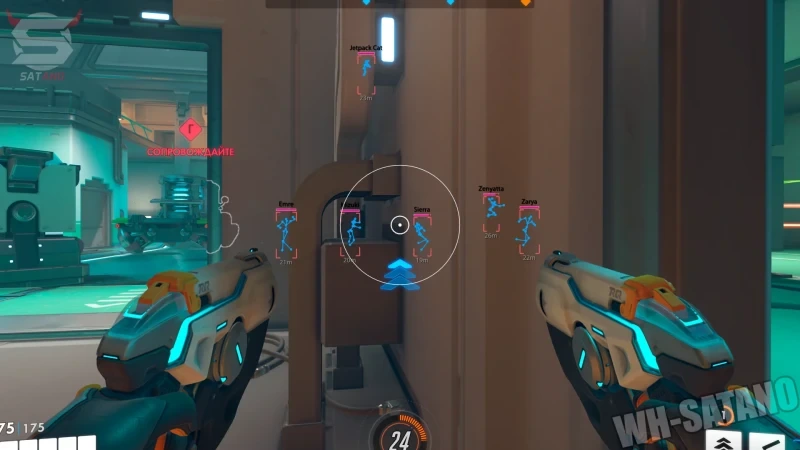
How ESP settings are organized
ESP controls are split into visibility layers: player info text, skeleton outlines, glow, box styles, ult charge overlay, enemy view angle, and target highlighting. Each group has its own toggles and color options.
View the full ESP feature page for the commercial module list. Full control index: Overwatch 2 cheat features.
Player info and skeleton
Player info adds HP, hero name, and distance text. Skeleton draws bone outlines so you can read posture and peek angles through cover.
Deep dive: skeleton ESP and player info. Pair skeleton with bone targeting on the aimbot page when tuning aim profiles.
Glow and box styles
Glow highlights enemies with fixed colors, HP-based shades, or rainbow modes. Box styles include 2D, 3D, and cornered boxes — pick one primary style to avoid clutter.
Compare styles: glow ESP options and 2D vs 3D box ESP.
View angle, ult overlay, and highlighting
Enemy view angle shows where opponents are looking. Ult charge overlay tracks fight-winning cooldowns. Target highlighting marks focus targets during chaotic team fights.
More on highlighting: target highlighting settings. Ult overlay notes: ult charge overlay.
Visual clarity and configuration
Distance scaling, color modes, and highlight rules reduce noise when many heroes are on screen. Save profiles after you tune — see visual distance and clarity.
Streamproof mode hides overlays from capture software — covered in the streamproof features guide.
Related guides
Commercial pages: Overwatch 2 ESP options, all features, and View the full product.
Narrow reads: skeleton and player info, 2D vs 3D boxes, glow options, target highlighting.